
Student Guide • Updated August 2026
Notion Templates for College Students: The Ultimate Guide
Between classes, assignments, extracurriculars, internships, and a social life, college is chaos without a system. The right Notion template replaces a dozen scattered apps and sticky notes with one clean, searchable workspace. Here is everything you need to know to find, set up, and master a Notion template that actually works for your study style.
In a Nutshell
The right Notion template can replace 5+ separate apps — calendar, to-do list, note-taking, budget tracker, and job application spreadsheet — with one interconnected workspace. We recommend starting with an all-in-one student dashboard if you are new to Notion, or building a custom stack of specialized templates if you already know the basics. Budget $0-$40 one-time for a template that will serve you for your entire college career.
Beginner
Difficulty Level
$0-$40
Template Cost
11 min
Reading Time
What You Will Learn
- Why Notion beats Google Docs, Evernote and physical planners for academic organization
- The 7 essential template categories every student should know about
- How to decide between free and premium templates based on your course load
- A simple 3-question framework to match a template to your study style
- Which templates to use each year — from freshman to senior
- The most common mistakes students make with Notion templates (and how to avoid them)
First: you can probably get Notion Plus for free
Before choosing a single template, check whether you qualify for Notion’s education offer. Eligible college and university students and educators can upgrade a one-member workspace to Education Plus at no cost — not a trial, not a discount, the actual Plus plan that otherwise costs $10 a month.
Verification is by email alone. Your institution needs to be listed in the World Higher Education Database, and you need to sign in with the address it issued you. It does not have to end in .edu— thousands of domains worldwide qualify, including .acvariants. Student IDs are not accepted as a substitute.
The two conditions nobody mentions
The workspace must have one member. This is the one that catches people. Education Plus is an individual offer, so the moment you invite a group-project teammate as a member, the free plan no longer applies to that workspace. Guests are different — sharing a page with someone as a guest is fine, and on Plus you can have up to 100 of them.
The practical answer for group work is to keep your own workspace on Education Plus and share individual pages with classmates as guests. If your society or club needs a genuinely shared workspace, Notion runs a separate offer for verified student organisations.
AI is not included. Education Plus gives you the Plus feature set, and Notion AI is not part of it beyond a limited trial. Full AI now sits on the Business plan at $20 per user per month, and that tier has no student pricing. If you have read older articles offering students half-price AI, that add-on no longer exists.
How to claim it
- Sign in to Notion with your institution email address.
- Open Settings, then Plans or Billing.
- Choose the education upgrade. Recognised domains are usually detected instantly.
- Confirm the workspace shows Education Plus, and that it has one member.
Access continues for as long as that email stays active, and Notion re-verifies periodically. When you graduate and the address is switched off, the workspace drops to the free plan — your pages stay, but the 5 MB upload cap and 7-day history come back. Worth exporting anything large before that happens.
Why Notion Is a Game-Changer for College Students
Most students cobble together a productivity stack from Google Calendar, a physical planner, scattered iPhone notes, and mental bandwidth. The result? Missed deadlines, forgotten readings, and Sunday-night panic when you realize you have three assignments due Monday morning.
Notion solves this by giving you a single, interconnected workspace. Instead of checking five different places to figure out what is due this week, you open one dashboard and see your classes, assignments, exams, project deadlines, and even your budget — all linked together. When a professor changes a deadline, you update it once and every related view automatically reflects the change.
Connected Databases
Link classes to assignments to notes. Update a due date once, see it everywhere. No more manual syncing between apps.
Works Everywhere
Desktop, laptop, phone, and tablet all sync in real time. Capture a quick note in class on your phone and expand it later on your laptop.
Free for Students
Notion's Personal Pro plan is free with a .edu email. Unlimited pages, blocks, and file uploads — enough for four years and beyond.
The 7 Essential Notion Template Categories for Students
Not every student needs every type of template. Start with the categories that solve your biggest pain points and expand from there. Here are the seven templates that cover the full student experience, from day one of freshman year to graduation.
Class & Course Management
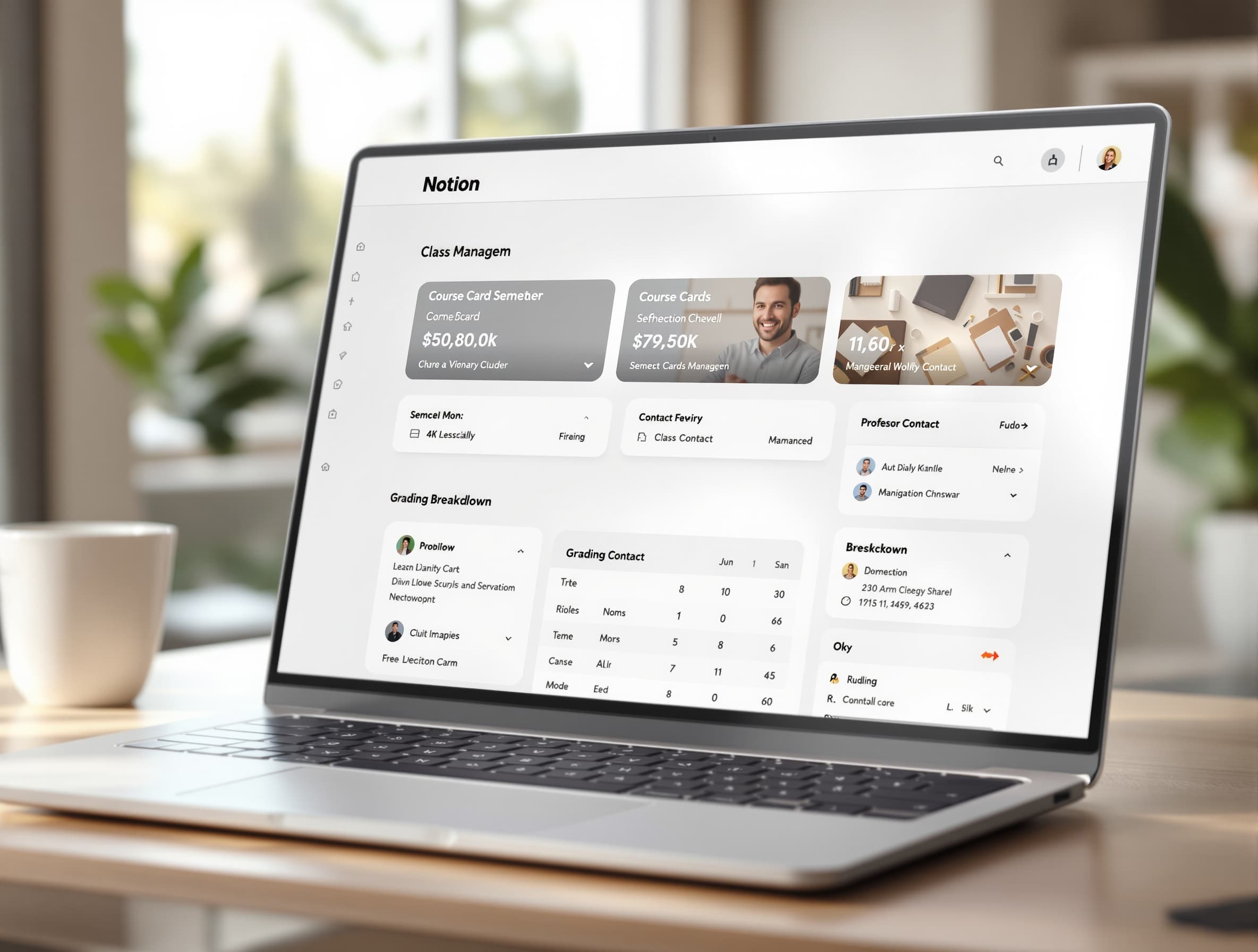
This is the foundation. A course management template tracks every class you are taking: professor name, office hours, syllabus links, classroom locations, credit hours, and grading breakdowns. Each course becomes a database entry that connects to your assignments, notes, and exam schedules.
The best course templates include a semester-at-a-glance calendar view so you can see all your classes in one place, plus individual course pages where you can attach lecture slides, reading lists, and link to the course portal. Some even include grade calculators that project your final grade based on completed and upcoming assignments — incredibly helpful for deciding where to focus your energy during finals week.
Recommended: look for templates that include a syllabus upload feature and automatic grade projection. These two features alone save students hours of manual math and guesswork every semester.
Assignment & Exam Tracker
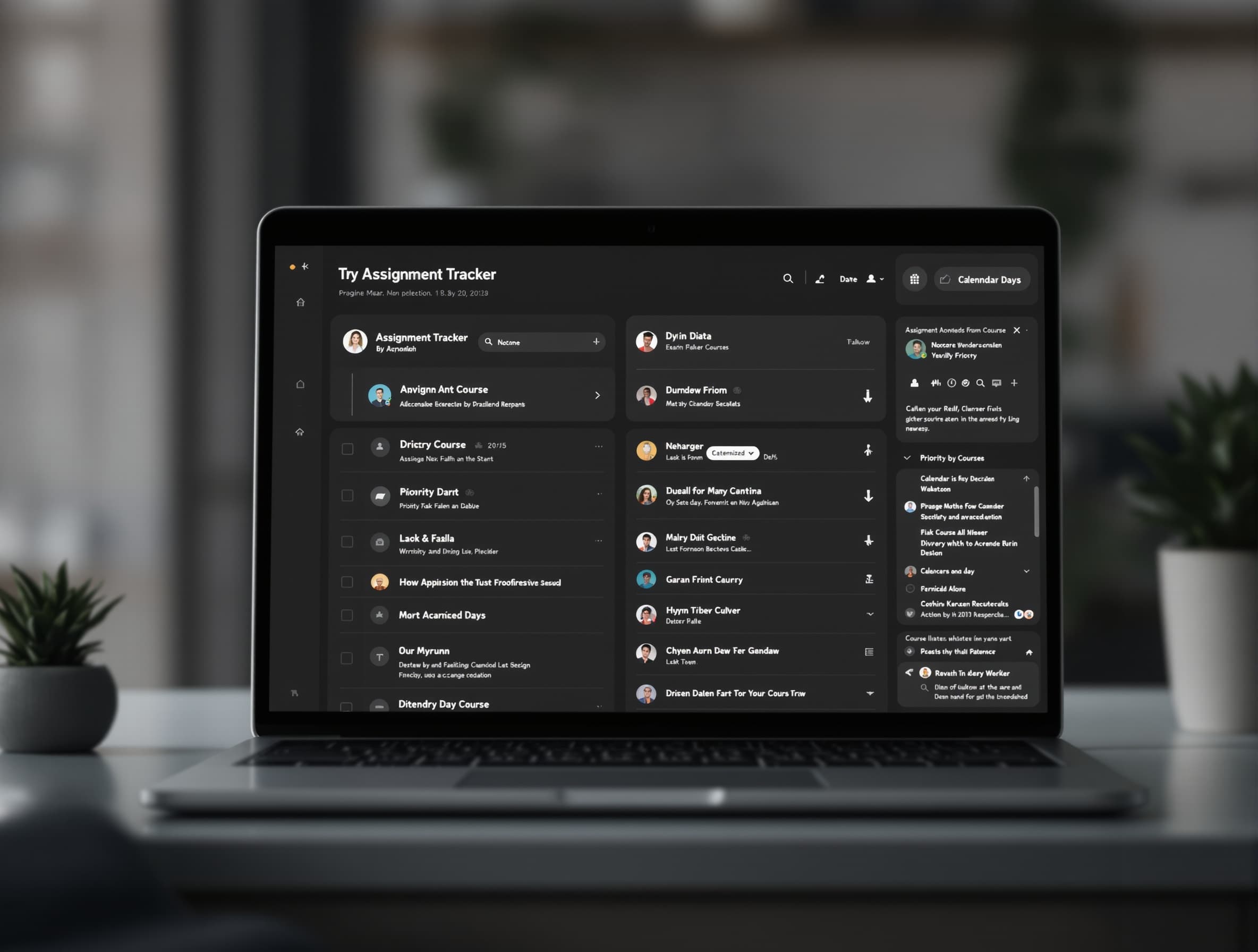
The assignment tracker is where most students spend 90% of their Notion time — and for good reason. A proper assignment tracker is not just a to-do list. It is a living database that connects every homework, paper, project, and exam to its parent course, shows due dates in a calendar view, sorts by priority, and tracks status from "Not Started" through "Submitted."
The game-changing feature here is filtered views. With one click, you can see only this week's deadlines. Or only the assignments for a specific class. Or only high-priority items across all courses. This beats scrolling through a syllabus PDF or a Google Doc every single time you sit down to work.
Pro tip: Set up a "Due This Week" view as your default homepage in Notion. Every time you open the app, you see exactly what needs attention — no clicking, no navigating, no forgetting.
Note-Taking System
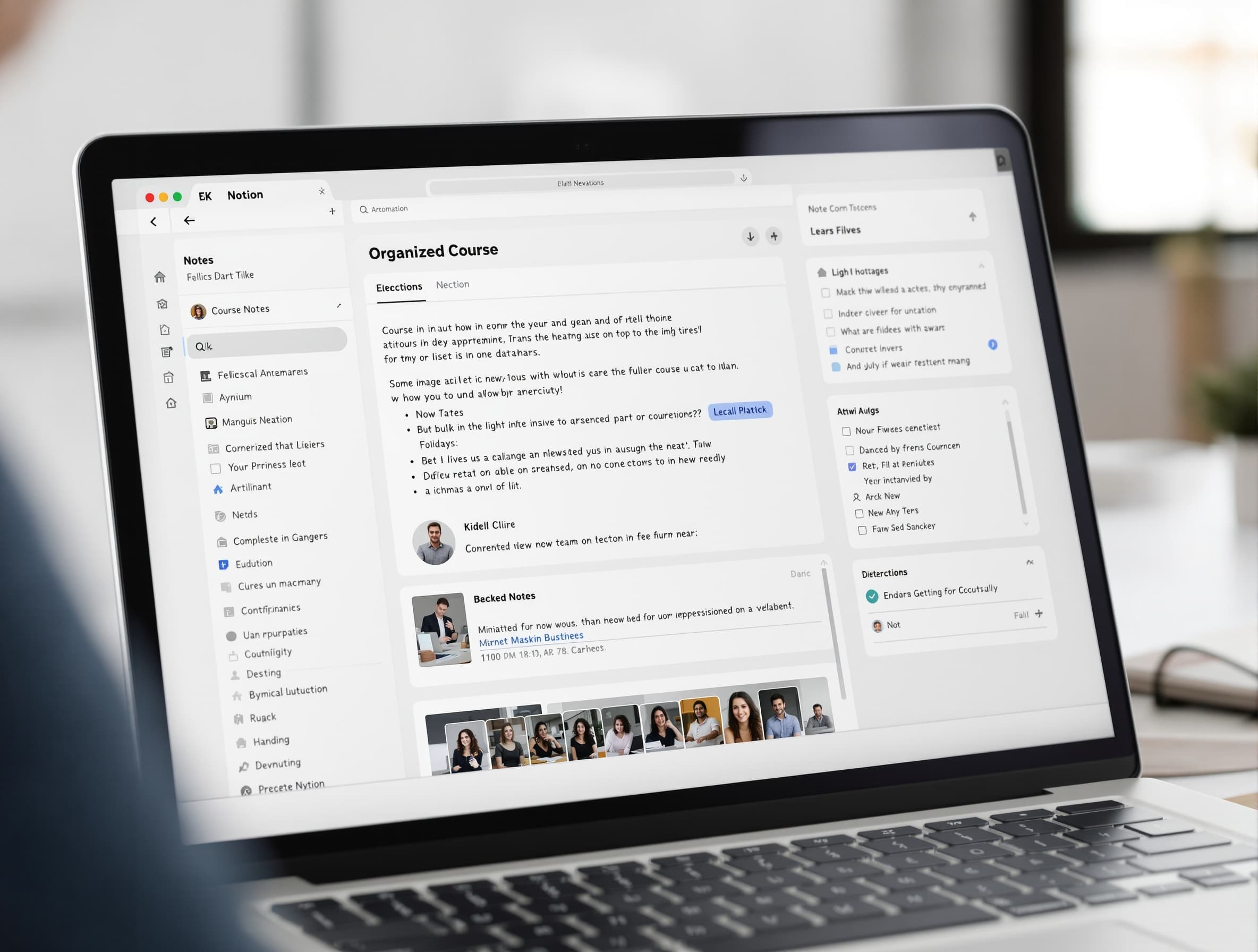
Notion replaces Evernote, OneNote, and Google Docs for note-taking — and does it better because your notes can link to everything else. A good student note template includes a master notes database with each entry tagged by course, lecture date, and topic, plus rich formatting support for headings, bullet lists, toggle sections, and embedded media.
The toggle feature alone is worth switching for — you can hide detailed content under collapsible headers, turning messy lecture notes into clean, review-friendly study guides. Before an exam, collapse everything and quiz yourself by expanding sections one at a time. It is like having built-in flashcards without the extra work of making them.
If you take STEM classes, look for templates that support LaTeX math notation (Notion supports inline equations) and code blocks for CS courses.
Group Project Hub
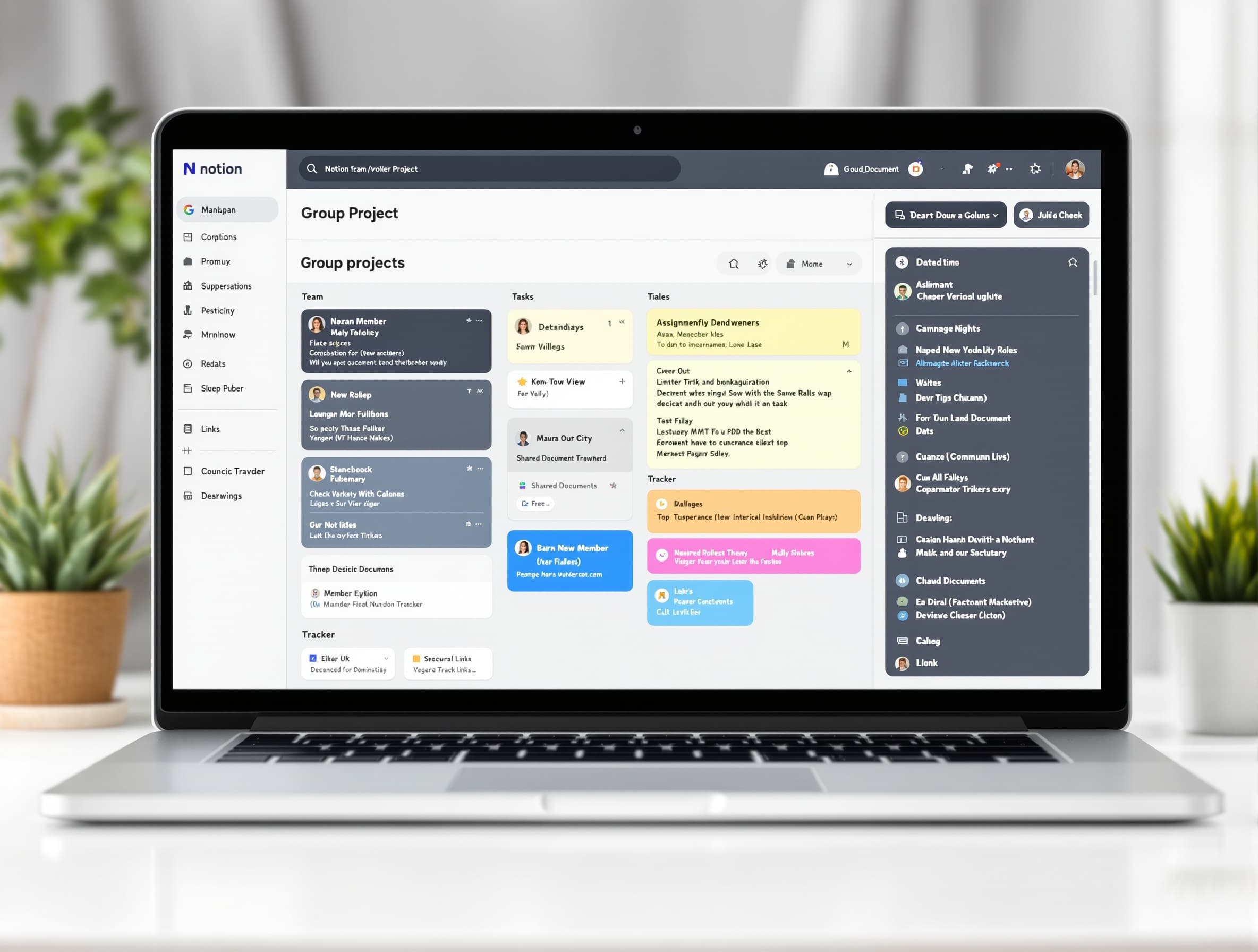
Group projects are where Notion truly shines over alternatives like Google Docs or Trello. A group project template gives you a shared workspace where every team member can see the project timeline, task assignments, meeting notes, and shared resources — all in one place, with clear ownership and deadlines.
The Kanban board view is particularly effective for group work. Tasks move through columns like "To Do," "In Progress," "In Review," and "Done," giving everyone instant visibility into project status. You can assign each task to a team member, set due dates, and attach relevant files — eliminating the "I thought you were doing that" problem that plagues group projects.
Most student-focused templates include a group project module, but if you frequently work in teams, look for one with robust collaboration features like comment threads and @mentions.
Budget & Expense Tracker
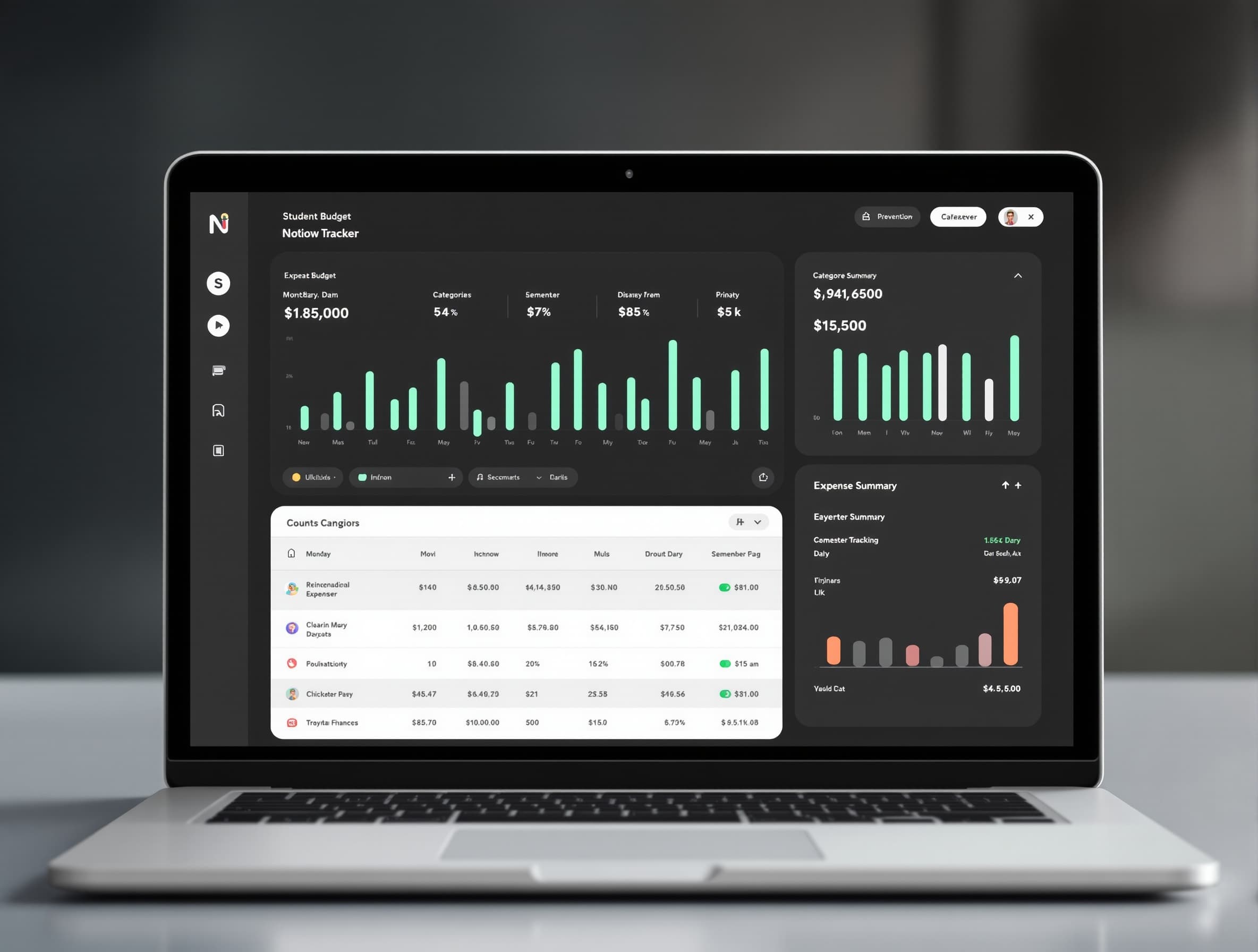
College is often the first time students manage their own money — and it is overwhelming. A budget template helps you track income (part-time job, financial aid refunds, family support) against expenses (rent, groceries, textbooks, late-night pizza) in one clean view.
The best student budget templates include category-based spending breakdowns, monthly budget vs. actual comparisons, and semester-level financial summaries. Some even account for irregular income — a reality for students who pick up shifts between exams or work seasonal jobs. Setting this up your freshman year builds a financial awareness that pays dividends long after graduation.
Look for templates with visual spending charts. When you see that $87 of your monthly food budget went to coffee, you might actually cut back. Data makes decisions easier.
Internship & Job Application Tracker
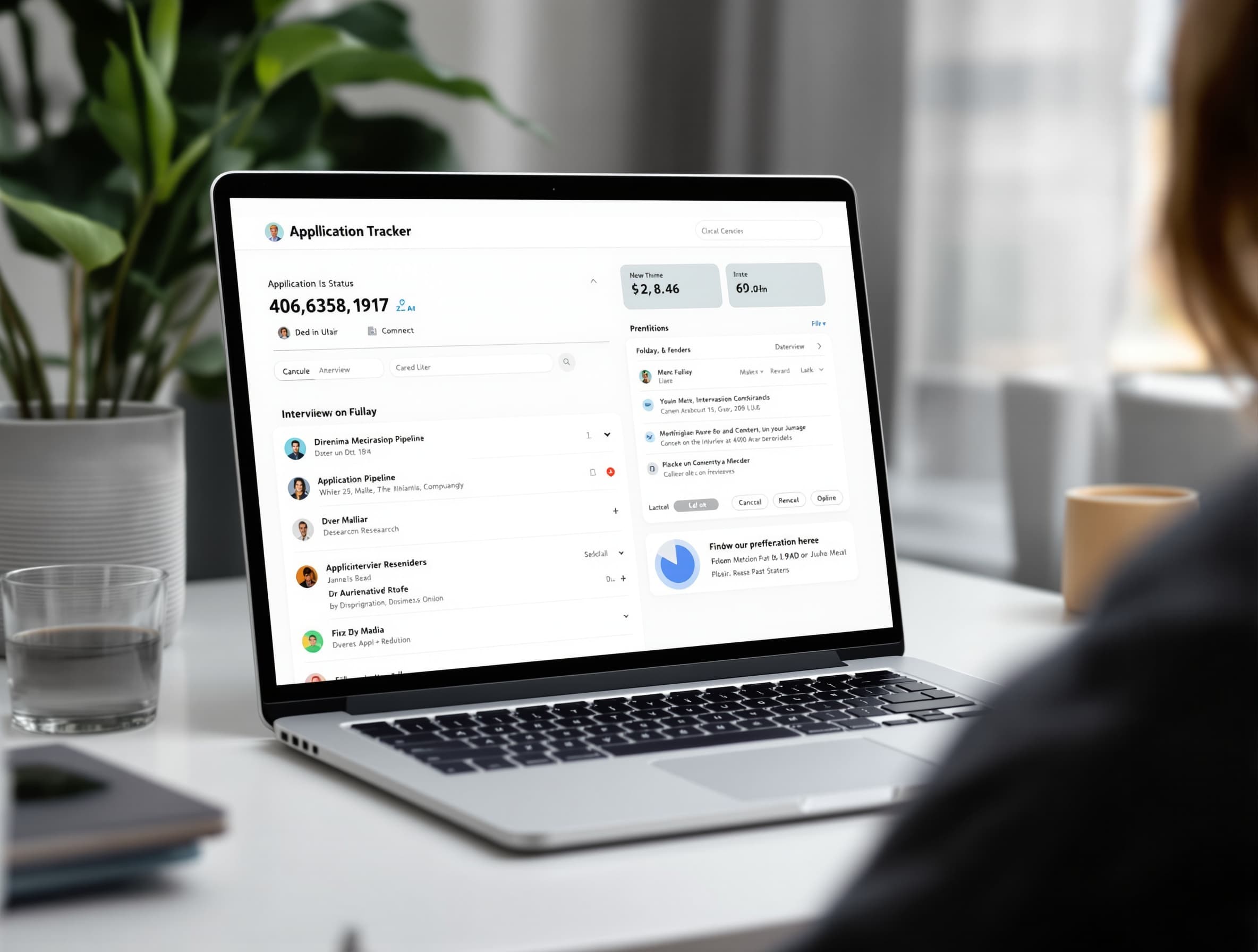
Applying for internships and entry-level jobs is a job in itself. Between researching companies, tailoring resumes, writing cover letters, tracking application statuses, and scheduling interviews, it is easy to lose track — especially when you are applying to 20+ positions.
An application tracker template turns this chaos into a pipeline. Each application is a database entry with fields for company name, role, application date, status (Applied, Phone Screen, Interview, Offer, Rejected), contact person, and follow-up reminders. The Kanban view gives you a visual pipeline so you can see exactly where each application stands.
Bonus: after you land the job, the same tracker can evolve into a professional networking CRM. The companies you apply to as a junior become the industry contacts you maintain throughout your career.
Dorm Life & Personal Dashboard
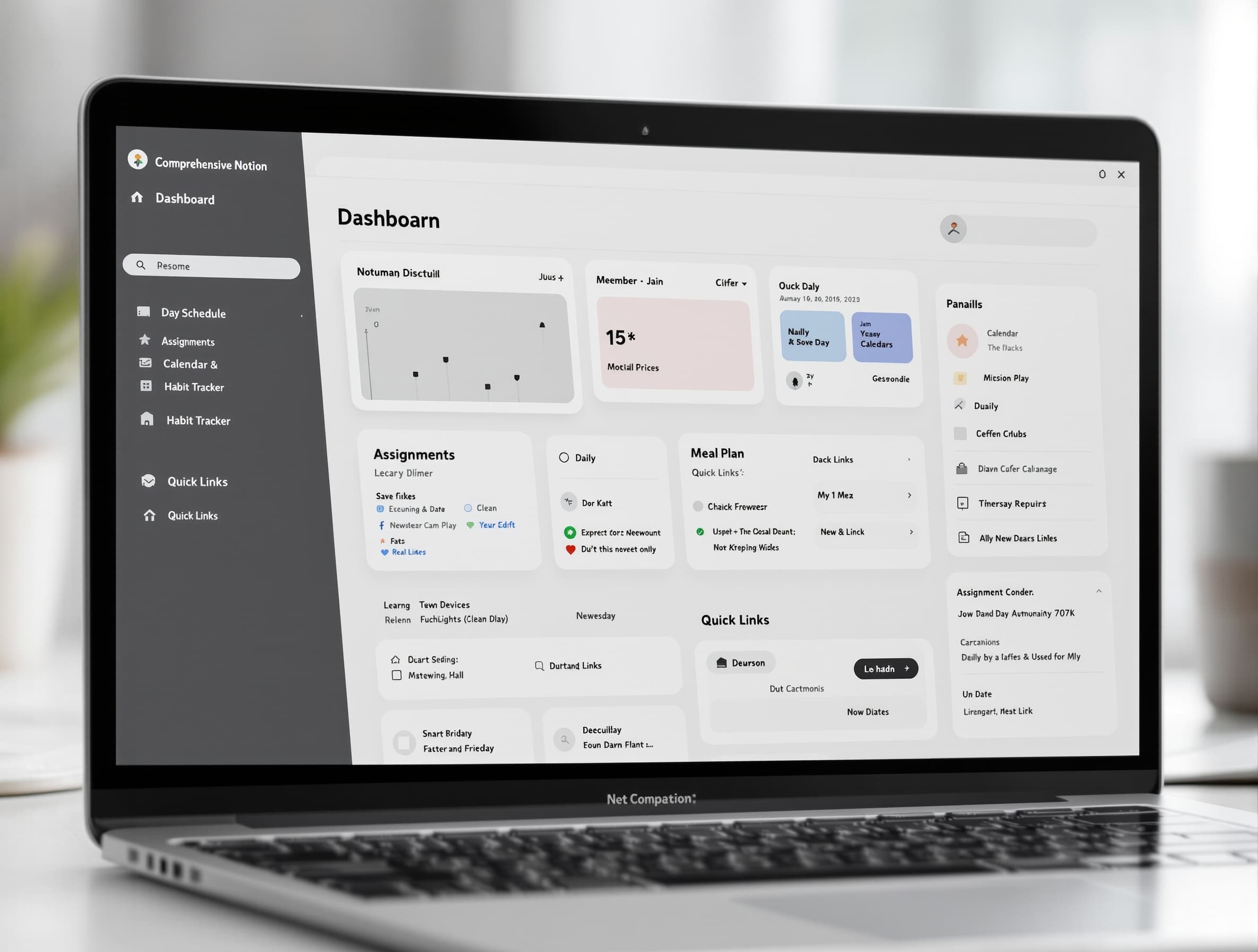
This covers everything outside the classroom: meal planning, chore rotation with roommates, packing lists for breaks, habit tracking (gym, sleep, reading), and even a "things to do before graduation" bucket list. It sounds trivial compared to assignments and exams, but these small systems reduce daily decision fatigue and free up mental energy for actual studying.
A well-designed student dashboard brings all seven categories together into one homepage. When you open Notion, you see today's classes, this week's deadlines, your spending summary, upcoming applications, and your daily habits — all at a glance. This is what elevates Notion from "another app I use sometimes" to "the command center for my entire college experience."
How to Choose the Right Template for Your Study Style
Not all students organize the same way. A pre-med student tracking labs and clinical hours needs something very different from an English major managing reading lists and essay deadlines. Here is a quick framework to match your study style to the right template approach.
The Deadline-Driven Student
You work best when you can see all deadlines in one calendar view. Prioritize templates with strong calendar and timeline views, color-coded by course, with automatic "due this week" filtering. The assignment tracker is your most important module.
The Note-Taking Power User
You live in your lecture notes and rely on them for exam prep. Look for templates with rich note-taking capabilities — toggle sections, embedded media, LaTeX support, and easy linking between notes and course pages. The note-taking module should be front and center.
The Group Project Leader
Your courses involve heavy collaboration. Prioritize templates with strong Kanban boards, task assignment features, shared workspaces, and meeting note templates. The group project hub and collaboration permissions are your key modules.
The All-in-One Organizer
You want everything — classes, assignments, notes, budget, habits — in one dashboard. Look for comprehensive templates that combine multiple modules. These are more complex to set up initially but pay off with zero context switching between apps. Our template review section rates each template by complexity so you can find the right starting point.
Common Mistakes Students Make With Notion Templates
Buying the most complex template available
A 12-database system with automations, formulas, and rollups sounds impressive — but it is overwhelming if you are new to Notion. Start with a simpler template and upgrade later. Complexity does not equal effectiveness. Many students abandon Notion entirely because they jumped into an advanced system before understanding the basics.
Setting up everything during syllabus week and never touching it again
The first week of the semester is the most dangerous time for template setup. You are motivated, you have all your syllabi, and you are convinced this semester will be different. But after the initial burst of organization, the template gathers dust. The fix: spend 5 minutes every morning updating your dashboard. Consistency beats intensity every time.
Not customizing the template to your actual workflow
A template is a starting point, not a finished product. If your template has a "Reading List" section but your courses are problem-set heavy, delete it and add a practice problems tracker. The best template is the one you actually use — and that means adapting it to how you really study, not how the template designer imagines you study.
The 80/20 Rule for Templates
Recommended Template Stacks by Year
Your template needs evolve as you progress through college. Here is how to build your Notion workspace at each stage.
Focus on building organizational habits. A broad dashboard with basic class, assignment, and note modules is all you need. Add the budget tracker early — financial literacy compounds over four years.
Courses get harder and group work increases. Upgrade your note system with toggle-based review features and add a shared project workspace for team assignments.
Career focus intensifies. Add an application pipeline tracker and consider building a portfolio page in Notion to showcase projects. The application tracker is your most valuable module this year.
Long-term project management and life-after-college planning take center stage. Many professional templates like Creator OS become relevant as you prepare for full-time work or freelancing.
What to Do Next
You have read the guide. Now here is exactly what to do, in order.
Pick your primary template category
Based on your biggest pain point — assignment tracking, note-taking, or an all-in-one dashboard — choose one template to start with. Do not try to set up all seven at once.
Browse our reviewed templates
Head to our best Notion templates review where we compare the top options side-by-side with real testing data and honest scoring.
Set aside 30 minutes for initial setup
Block off your calendar, grab your syllabi, and follow the template's setup guide. Enter your courses, add this week's assignments, and configure your homepage view. Thirty focused minutes now saves hours every week.
Build the daily check-in habit
Commit to opening your Notion dashboard once every morning for two weeks. Review today's schedule, check deadlines, and update any statuses. After two weeks, it becomes automatic — and that is when the real productivity gains kick in.
Need Help Choosing?
Frequently Asked Questions
Everything college students ask us about using Notion templates for academic life.
Ready to organize your academic life?
The right Notion template can mean the difference between a stressful semester and a smooth one. Browse our in-depth reviews to find the template that matches your study style.